
Description
Organisations records can be governed at both the organisation and location level in SPORIFY via the following screens:
-
Organisations Source Lists
-
Organisations Target Lists
-
Organisations Details Pages
Procedure
-
Login to SPORIFY.
-
Select Organisations on the navigation menu.
-
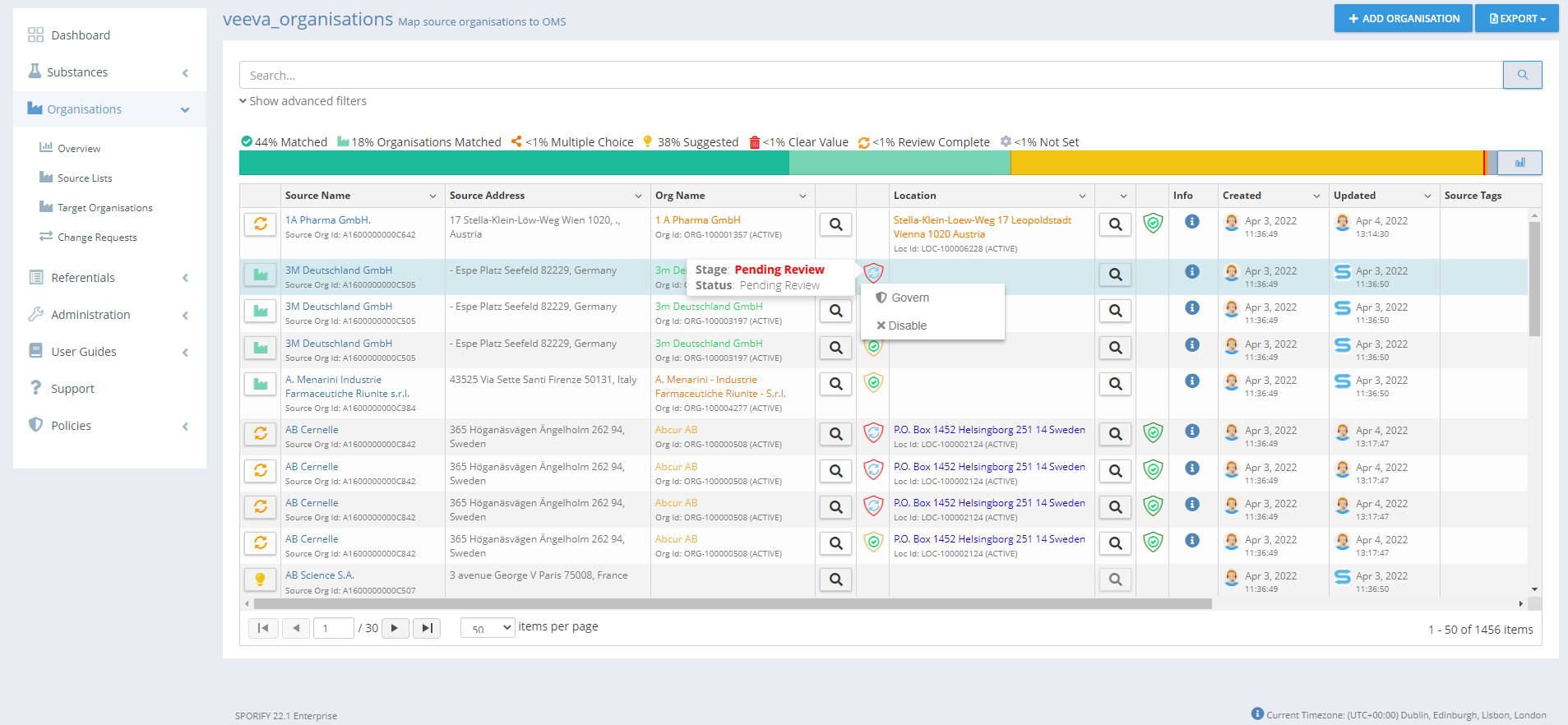
To govern data via Organisations Source Lists, carry out the following actions:
-
Select Source Lists.
-
Select the relevant list.
-
Click on the relevant data governance (shield) icon.
-
To govern an organisation, select the data governance icon located to the right of the Org Name column.
-
To govern a location, select the data governance icon located to the right of the Location column.
-
-
Select from the following:
-
Enable
-
This enables the governance of the given record.
-
Note: This option is only available when a record has not already been enabled.
-
-
Disable
-
This disables the governance of the given record.
-
Note: This option is only available when a record has already been enabled.
-
-
Govern
-
This presents the Governance modal.
-
For more information about governing records in SPORIFY, see FS - 481787905 - Data Governance.
-
-
-
-
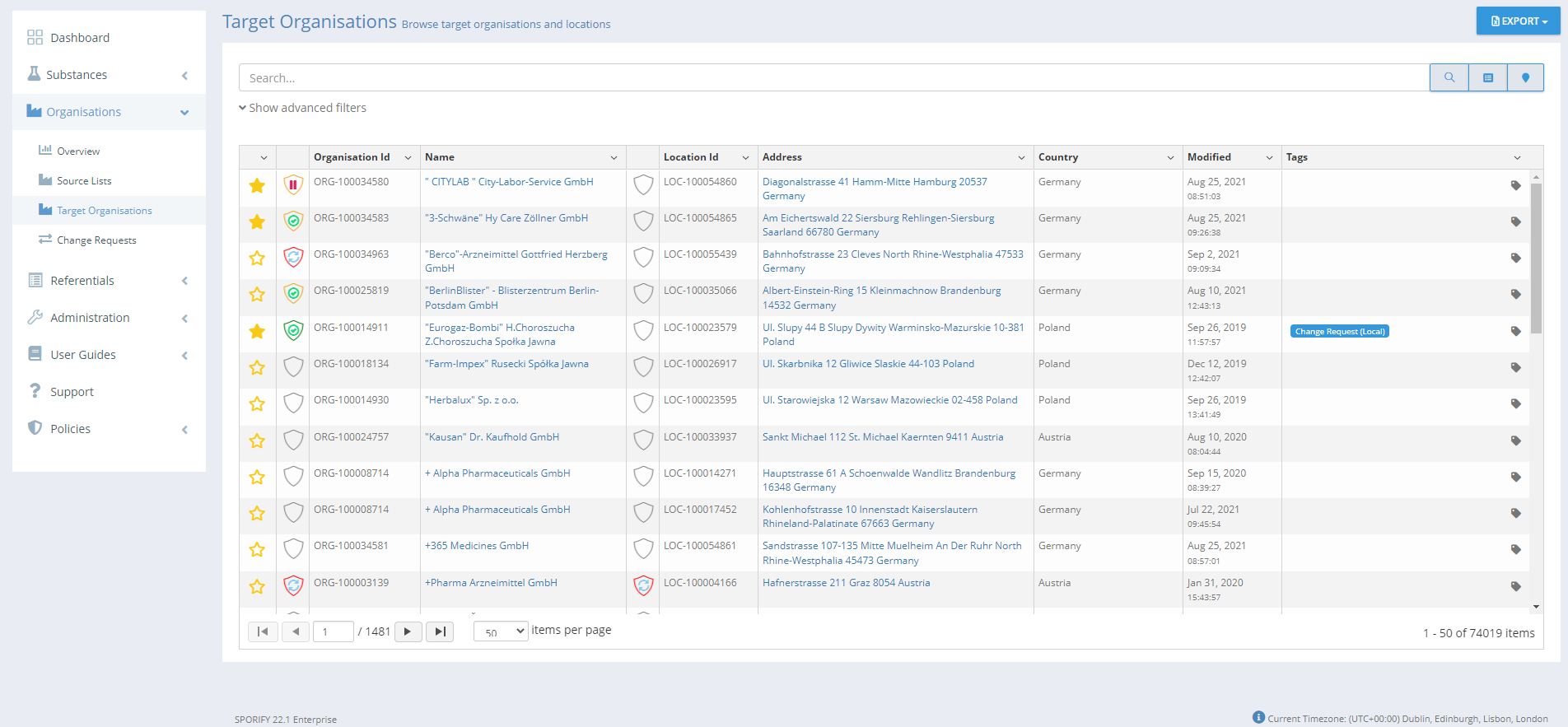
To govern data via Organisations Target Lists, carry out the following actions:
-
Select Target Organisations.
-
Click on the relevant data governance (shield) icon.
-
To govern an organisation, select the data governance icon located to the left of the Organisation ID column.
-
To govern a location, select the data governance icon located to the left of the Location ID column.
-
-
Select from the following:
-
Enable
-
This enables the governance of the given record.
-
Note: This option is only available when a record has not already been enabled.
-
-
Disable
-
This disables the governance of the given record.
-
Note: This option is only available when a record has already been enabled.
-
-
Govern
-
This presents the Governance modal.
-
For more information about governing records in SPORIFY, see FS - 481787905 - Data Governance.
-
-
-
-
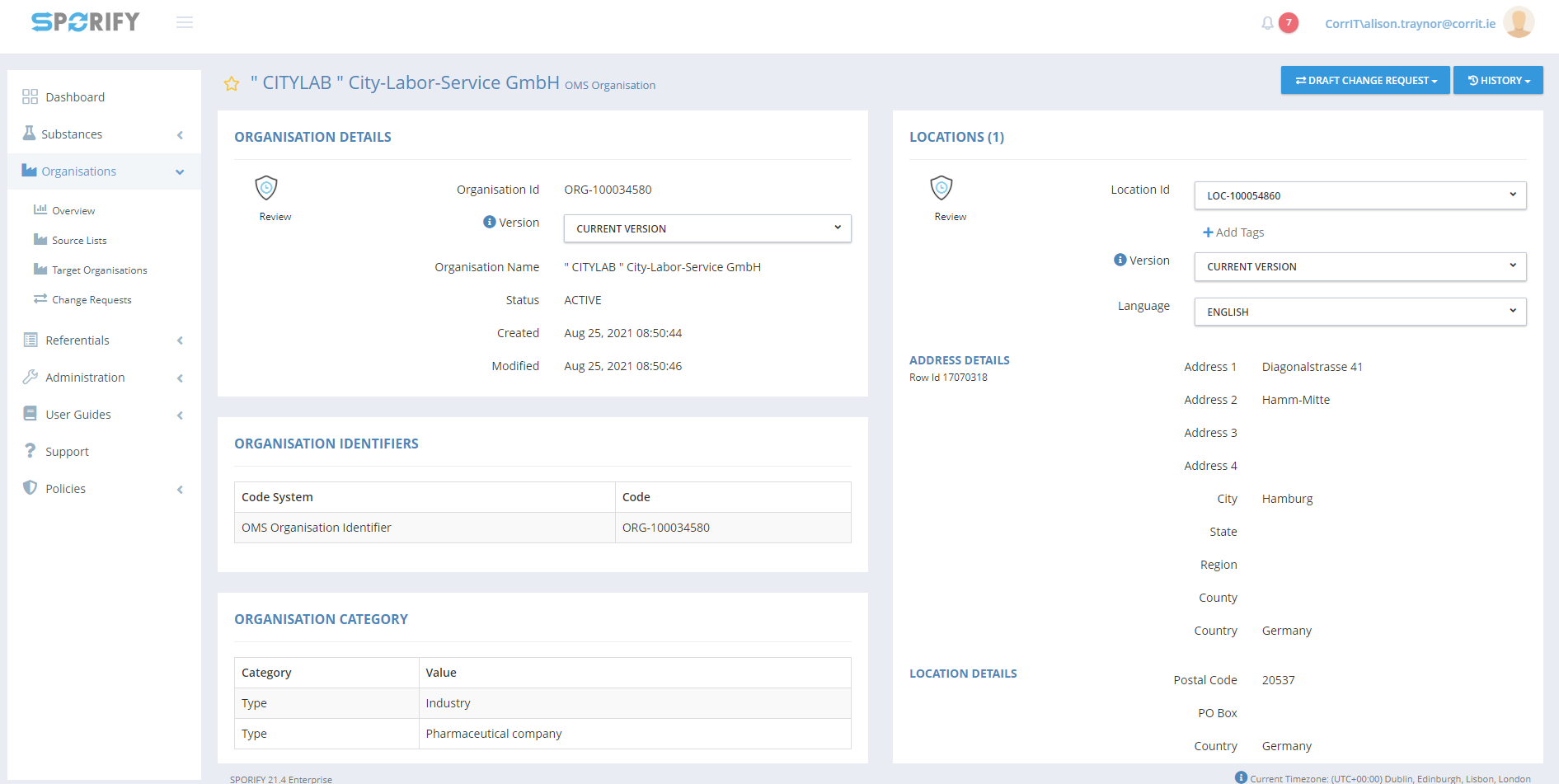
To govern data via Organisations Details Pages, carry out the following actions:
-
Select the relevant Organisations record.
-
Click on the relevant link to navigate to the record’s details page.
-
Click on a presented data governance (shield) icon.
-
To govern an organisation, select the data governance icon located in the Organisation Details section.
-
To govern a location, select the data governance icon located in the Locations section.
-
-
Data Governance modal is presented
-
This modal contains the following:
-
A heading indicating the current stage of the data governance process for the given record
-
Record details with a link to the relevant details screen
-
The record’s current status
-
Who applied the status and when it was applied is shown for each stage of the process
-
-
Status options
-
When reviewing a record:
-
Click on the desired status to add to the record.
-
Insert a comment on the Add Comment modal.
-
Click Save, else Skip.
-
-
When approving a record:
-
Click on the desired status to add to the record.
-
Fill in e-signature details if required.
-
Else, add comment if desired.
-
Click Save, else Skip.
-
-
-
-
Acceptance Criteria
We succeed only if Organisations records can be governed in SPORIFY.
-
Verify that Organisations can be governed via Source Lists.
-
Verify that Organisations can be governed via Target Lists.
-
Verify that Organisations can be governed via Details Pages.
-
Verify that Organisations can be governed at both organisation and location levels.
Related / Alternative Procedure
N/A
GUI Specification
Purpose of these GUI elements.
The purpose of these GUI elements is to enable the governance of Organisations records in SPORIFY.
Mockups and Screenshots
GUI Elements
|
Mockup of GUI Element |
Title |
Default |
Enabled |
Type |
Data |
Description |
|---|---|---|---|---|---|---|
|
N/A |
N/A |
N/A |
N/A |
N/A |
N/A |
N/A |
Available Actions And Commands
|
Mockup of GUI Element |
Title |
Shortcut |
Enabled |
Type |
Role/Permission |
Action |
Tooltip |
Audit Trail |
|---|---|---|---|---|---|---|---|---|

|
Data Governance |
N/A |
Always |
Icon |
Administration - Data Governance |
Presents the following options: Enable, Disable, Govern |
N/A |
No |
Related Documentation and Sources
-
N/A